Getting Started
Follow this guide to complete your profile submission. Each chapter walks you through a key step in the process.
#checkouts
The #checkouts channel displays live bot checkout confirmations. Successfully checked out items show the order details, account used, and product purchased. Monitor this channel during drops to track bot performance.
Do not publicly share order confirmation screenshots as they may contain personally identifiable information. Blur or crop sensitive details before posting in public channels.
#monitors
The #monitors channel displays real-time product drops from supported retailers including Target, Pokémon Center, Best Buy, and Walmart. When products go live you'll see pings with product name, price, and direct links.
Create custom notification settings for the monitors channel to receive pings only for the retailers you care about.
Text Channels
Mute irrelevant channels and enable @mentions only for #announcements and #support.
Submit Your Discord Username & Quantities
Enter your Discord username (found in the bottom-left of the Discord app). This maps your account to your submission. Also specify how many items you want per order at each retailer:
- Target — max 2 per order
- Walmart — max 5 per order
- Sam's Club — max 2 per order
- Costco — max 1 per order
- PKC — depends on item
Submit Your Retail Account Credentials
Provide login credentials (email + password) for each retailer. The bot uses these to complete checkouts on your behalf. Supported retailers:
- Target — account login required
- Walmart — account login required
- Sam's Club — account login required
- Costco — account login required
- Pokémon Center (PKC) — guest checkout, no account needed
Make sure all accounts are active and you can physically log in to them today. Multiple profile tiers require multiple accounts per retailer.
PKC does not require an account — we go through guest checkout, so no login is needed.
Log In to Your Email Account
Sign in to your Gmail or iCloud account in a browser. AstroACO uses IMAP to monitor order confirmation emails and fetch verification codes so the bot can sign in without you needing to enter codes manually.
We only support Gmail and iCloud email addresses. Other providers (Yahoo, Hotmail/Outlook, etc.) are not supported.
Enable 2-Factor Authentication
2FA must be enabled on your Gmail account before you can generate an App Password. Go to your Google Account security settings and turn on 2-Step Verification.
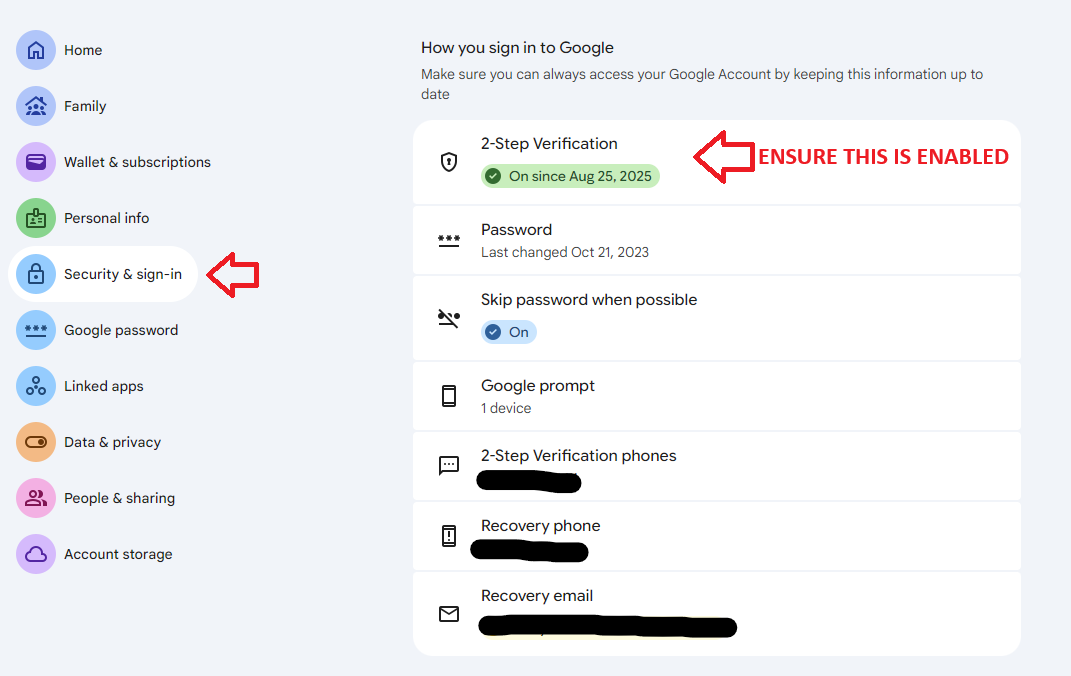
Google Account → Security → 2-Step Verification
Create an App Password
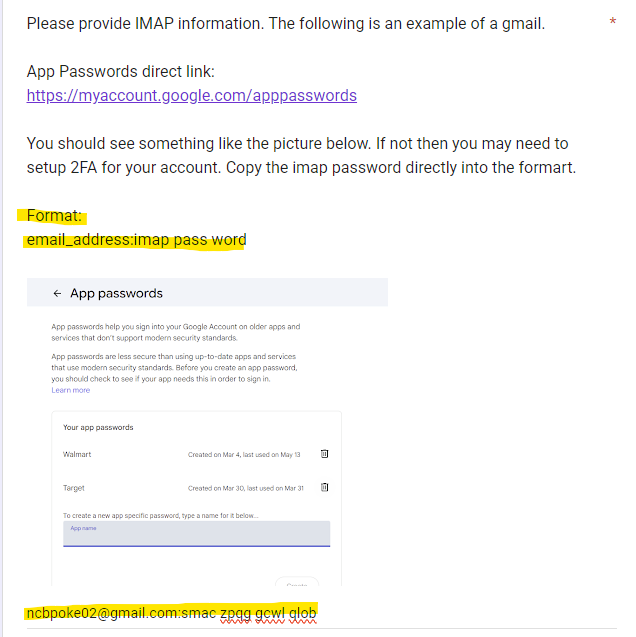
Create a new app password and name it "AstroACO" or the retailer name to keep track.
- Gmail: myaccount.google.com/apppasswords →
- iCloud: account.apple.com → Sign-In and Security → App-Specific Passwords →
If you see the screen below, you did NOT complete Step 2. Go back and enable 2FA first.
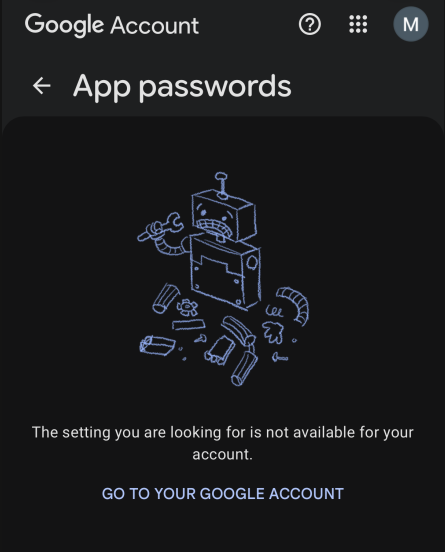
This screen means 2FA is not yet enabled — complete Step 2 first
Create App Password (continued)
Once 2FA is enabled, you should see the App Passwords page. Type in Walmart or Target as the app name and click Create.
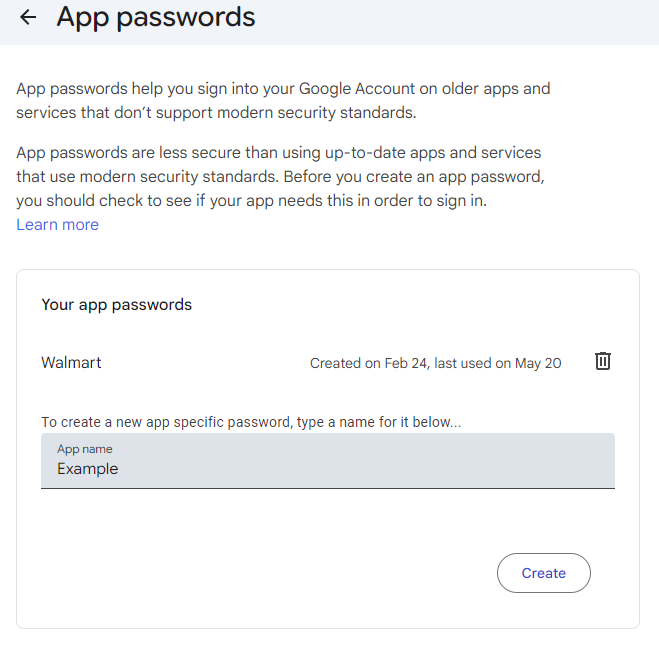
Creating a new app password — name it after the retailer
Copy Your 16-Character Code
Google will display a 16-character app password. Save it — it's only shown once. The format looks like abcd efgh ijkl mnop.
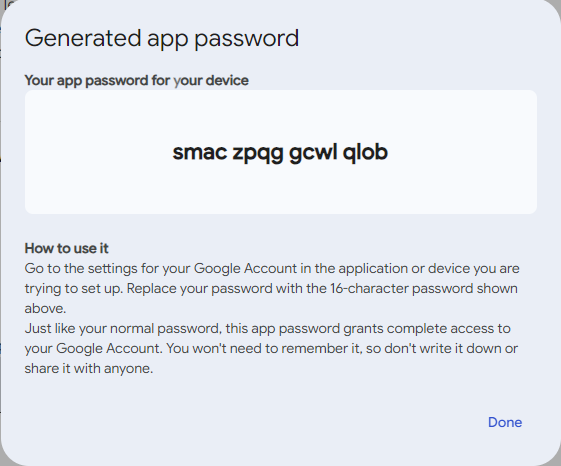
Copy this code — you only see it once
Enter Your IMAP Credentials in the Form
In Step 3 of the submission form, fill in your IMAP email address and paste the app password you just copied. The form shows a live preview in email:password format as you type.
Paste the app password into the IMAP App Password field
Always use your App Password, never your regular Gmail password. Regular passwords will fail when 2FA is enabled.
Fill In Your Profile Info
The submission form walks you through entering your shipping, billing, and payment details for each retailer. Profile names are auto-generated from your Discord Username — you can edit them.
Always use TX (not Texas) and US (not USA) for state and country fields.
Target & Walmart Profiles
Steps 4 and 5 collect your Target and Walmart profile data separately. Walmart has two extra fields — Card Holder Name and an One Time Use toggle. Use the 4-digit expiry year (e.g. 2026).
Sam's Club, Costco & PKC Profiles (v2.0 tiers only)
Steps 6, 7, and 8 collect profiles for Sam's Club, Costco, and Pokémon Center separately. Each step has its own profile naming convention built into the form — just fill in your details and the form handles the naming automatically.
PKC uses guest checkout — no account login is needed, but you still need to provide shipping and payment info for the checkout.
Review & Submit
The final step shows a summary of everything you've entered. Review it carefully, then click Submit Profile. Your data is sent securely to the AstroACO team and you'll receive a confirmation via Discord DM.
If you don't hear back within 24 hours, open a support ticket in #support on Discord.